
Data Export
You can export various types of data through the Analytics section (this data will cover all rooms available on the platform) or through the menu in a separate room (in this case, you will export the data just for this specific chat).
Export from all rooms
To export all data for the period, open the section Analytics > Data export
Then initiate a new export by clicking the needed button.
Then, choose the needed type of data:
- messages
- users
- bans
- tips (if available)
- promo codes usage
If you download different types of data at once, you need to specify just one time period. If you need different types of dat for different periods of time, form several exports.
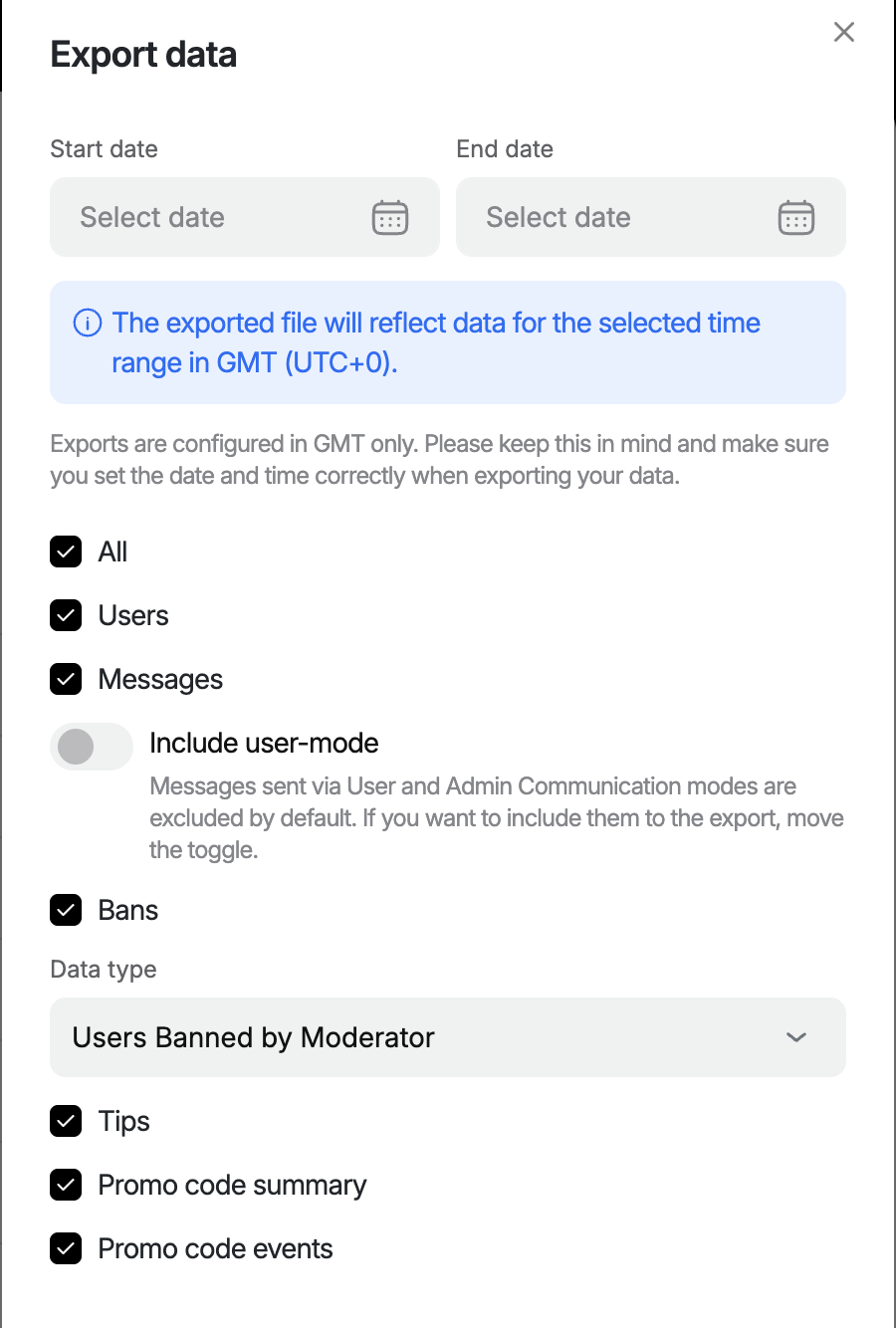 For any type of data, you need to specify the time range. Please note that the exported file will reflect data for the selected time range in GMT (UTC+0).
If you download the list of users, the CSV file will include the userID of all users who visited the chat for the period, the date and time of the last action, and the users' nicknames.
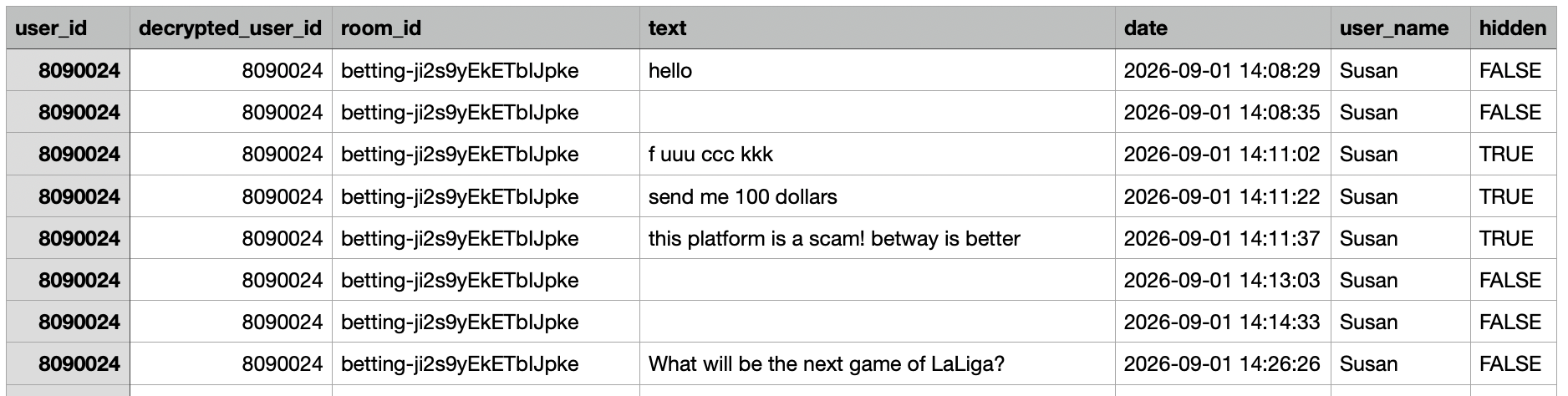
The CSV file with messages includes a list of all messages sent for the period. All messages are displayed with the userID of the sender, the time the messages were sent, the nicknames of the user, and the parameter HIDDEN—the information about every message on whether it is visible in chat or hidden (by AI or human moderators).
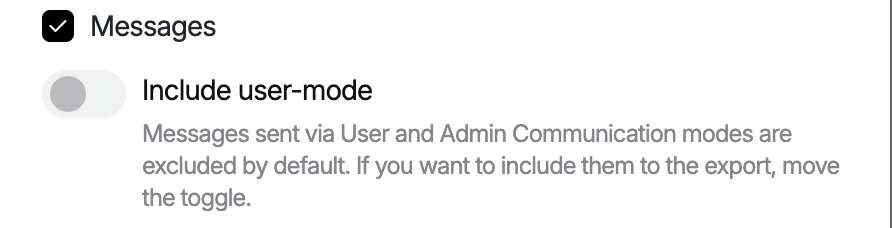 You can check the needed box, and your list of messages will include messages sent by admins (via User or Admin communication mode), but they are not included in the list by default.
The CSV file includes a list of all bans performed on the platform for the period, with the user IDs of the banned users, reasons for banning, timing, ban duration, and who performed the ban.
A list of tips is available if the feature is activated for users.
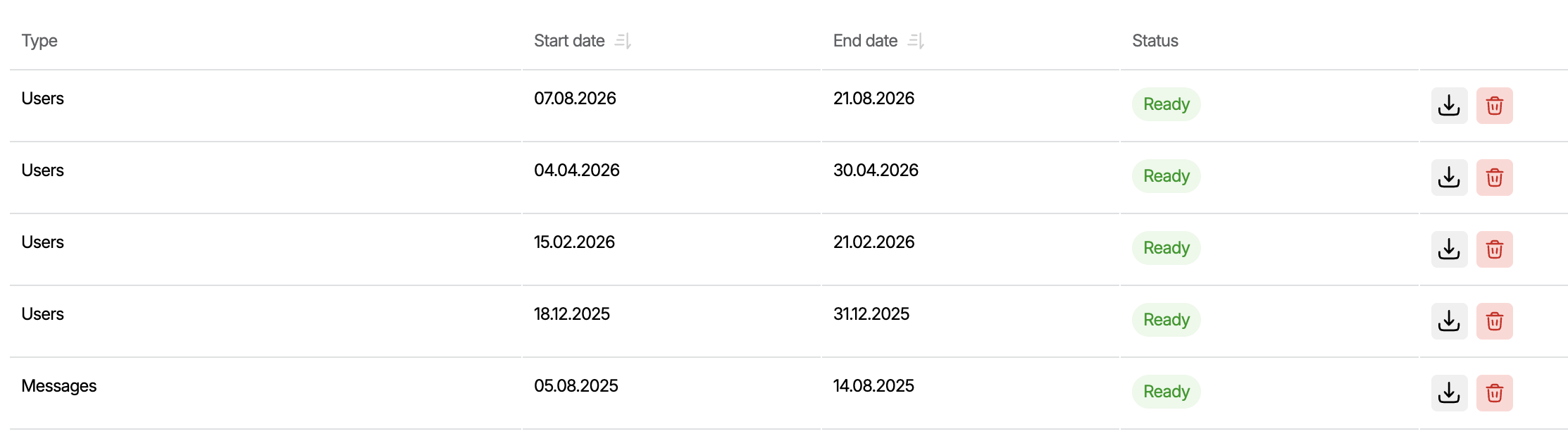
After requesting an export, you need to wait a bit and refresh the page. When your document is ready, download it. You can also delete a prepared file. If not deleted, all the export files are kept in the admin panel.
 Export from a room
If you want to export data for a specific room, open it through the contextual menu of the message or the list of rooms.
 Click Export, then choose the data you need: messages sent in the room, or a list of users who visited it.
 If you select Messages, you can specify the date range to get the data, or download all messages sent in the room: to do so, check the needed box.
 After your request, the list of the data exports will be opened, and you will be able to download the needed file.